

Technology Services
Access Technology Resources
All RVC students are responsible for adhering to the procedure for acceptable use of RVC Information Technology Policy. Please review our current policy. For technical support for events, please contact (815) 921-4800.
Setting up Multi-Factor Authentication: After your application to the Rock Valley College is processed, you will receive an email to set up your official RVC account. Please note that it can take up to 30 minutes after creating your account before you can log in. Upon successfully logging in, you will be prompted to set up Multi-Factor Authentication. Setting up MFA is required to access your Self Service Account. The default method is the Microsoft Authenticator app, but other options are available by clicking “I want to set up a different method” in the lower left hand corner. For support, access the tutorial, call (815) 921-4000, or email RVC-Admissions@rockvalleycollege.edu.
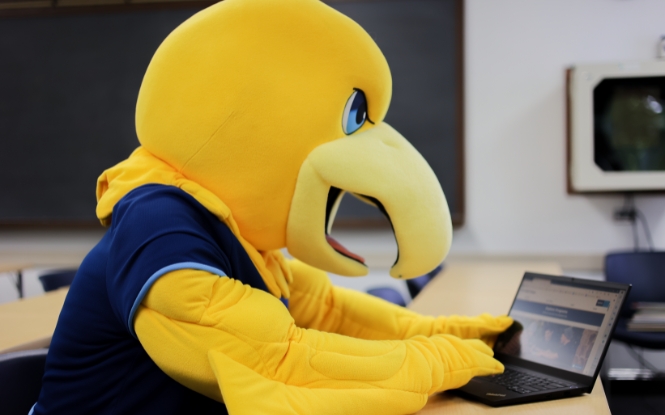
Canvas/EAGLE
Technical assistance for students and instructors is available through the Canvas Support Office by:
- Within Canvas/EAGLE, select "Help" and "Contact Canvas Support"
- (815) 921-4625
- RVC-EAGLESupport@RockValleyCollege.edu
RVC Network Account & Password Management
RVC Network Accounts are used to sign in to different systems like RVC PCs, Office 365, Canvas (EAGLE), RVC Google Accounts, and Self Service.
To reset your password, visit PasswordReset.MicrosoftOnline.com
Whenever you change your RVC password, you should update the following systems:
- RVC PC: Reboot the PC and log in with your new password
- Personal Device Connected to College Wi-Fi (RVC): You should "forget" the connection and then re-connect using your new password
- App on Personal Device Using RVC Account: You should verify the app continues to work after setting your new password (i.e. Outlook, Canvas, Teams)
The RVC Information Technology (IT) enforces a strong password policy.
Passwords must adhere to the following criteria:
- Passwords will require at least 16 characters
- Passwords will expire every 365 days
- Previous passwords cannot be reused
- Passwords will be validated against Microsoft's list of known weak and commonly used passwords
- Long passwords are encouraged (Examples: dogsandcantsarecool, mydogsnameisrocky, favoritemovie=id4)
If you have issues with these steps, feel free to contact the following support channels:
- RVC Students: Contact the Welcome Center by visiting RVC Main Campus, Stenstrom Student Center, First Floor or call (815) 921-4000
- RVC Employees: Contact the RVC IT Department by visiting RVC Main Campus, Woodward Technology Center, Second Floor, Room 2300 or call (815) 921-4800
Laptop Loan Program
Rock Valley College provides a laptop loan program for students who cannot afford to purchase one but need one to be successful in RVC courses. Laptops are available on a first come, first served basis.
For assistance, please contact the IT Help Desk at (815) 921-4800 or visit us in the Woodward Technology Center (WTC), Room 1100, Monday-Friday from 8:00 AM to 7:00 PM.
Laptops are equipped with wireless network cards for use where wireless access exists. For example, wireless networking is available throughout campus. All laptops are loaded with Office 365.
Any RVC Student currently enrolled in a credited course. Laptop loans are available for one semester at a time, and a new loan agreement must be completed for each subsequent semester. Laptop loans for the upcoming semester will become available starting the Monday prior to the start of that semester.
The Laptop Loan Program is limited to first come first serve due to a limited supply of laptops. A waitlist will be offered once our supply is exhausted. Please note, being waitlisted for a Laptop Loan does not guarantee equipment, as it will depend on the supply of returns.
To request a laptop loan, schedule an appointment.
To return a laptop, schedule an appointment. Laptop loan returns are due by the first Monday following the end of each semester. Failure to return a laptop loan on time could result in late fees and prevent further acceptance in the Laptop Loan Program.

Computer Labs & Printing
We have many different computer labs for classroom instruction, student, and community use. All labs contain computers with access to Internet, Canvas/EAGLE, standard software, and printers.
- Woodward Technology Center (Room 1100) – Free Printing, limited to 20 pages per day,
double-sided
- Monday-Thursday: 8 a.m. – 9:45 p.m.
- Friday: 8 a.m. – 6 p.m.
- Saturday: 8 a.m. – 2 p.m.
- Library Commons (ERC, First Floor) – Metered Printing, first 25 pages printed daily
are free, then 10¢ single side print and 20¢ double-sided print
- Monday-Thursday: 8 a.m. – 6 p.m.
- Friday: 8 a.m. – 5 p.m.
Get Microsoft Office
As an RVC student, you can install Microsoft Office 365 ProPlus for FREE on your personal computers and mobile devices.
As an RVC student, you can install Microsoft Office 365 ProPlus for FREE on your personal computers and mobile devices. Office 365 ProPlus includes full versions of Word, Excel, PowerPoint, Outlook, and OneNote, and can be installed on up to five personally-owned PCs/Macs and up to five mobile devices, including iOS and Android devices.
The software has the same features and functions as other versions of Office and can be used offline; however, you must connect to the Internet once every 30 days to verify you are still eligible for the program.
As part of the Microsoft 365 Apps for enterprise subscription, all Office apps get the latest software updates as soon as they're released. Mobile versions of each app are available for iOS and Android smartphones and tablets. You can use online versions of Word, OneNote, PowerPoint, and Excel on any device at any time.
In addition to the apps and associated services, Microsoft 365 Apps for enterprise subscribers have access to 1 TB of cloud storage on OneDrive.
You will need your student ID number (your s#) and your network password.
- Microsoft recommends you uninstall any copy of Office installed on your computer before downloading Office 365 ProPlus.
- Use the computer you want to install it on to download the software. PC for the PC version, Mac for the Mac version, etc. (do not try to install on an RVC computer).
- Go to the Office 365 portal
- Log into the portal using your S#@student.rockvalleycollege.edu. Example: s0123456@student.rockvalleycollege.edu
- Enter your RVC password
- Click "Sign In"
- Upon successful login, you will arrive at the Office 365 Microsoft Office landing page. From there, click on “Install Office” and select “Office 365 Apps”
What devices can I install Office on?
- Windows tablet: Office 365 ProPlus versions of Word, Excel, PowerPoint, OneNote, Teams, SharePoint, and OneDrive. Windows 8 or higher is required. Office Mobile applications (Word, Excel, PowerPoint, and OneNote) require Windows 10.
- Windows phone: Office Mobile applications (Word, Excel, PowerPoint, OneNote, OneDrive, SharePoint, and Teams) require Windows 10 Mobile.
- iOS: Office for iPad® and iPhone® requires iOS 14.0 or higher.
- Android: Office for Android™ can be installed on tablets and phones that meet the following criteria: running Android Pie 9 or later version and have an ARM-based or Intel x86 processor.
How long can I keep my license for Office 365 ProPlus? If you are a current student enrolled for one or more credits at RVC, you are eligible for the Office 365 ProPlus license. You must have an s# and a network password. You also must connect to the Internet once every 30 days to verify you are still eligible for the program.
How many devices can I install the software on? Each subscription license allows you to install Microsoft Office on up to five computers. You can also run Office Mobile for Android or iPhone on up to five mobile devices. The software has the same features and functions as other versions of Office and can be used offline.